TigRun — How to Play & Design Mazes
Picture guide for everyone who plays or builds mazes. Each section matches a real screen in the game. Open Help & manual from the home page or design mode anytime.
← Back to TigRun1. Home screen
This is the first screen you see. Nothing starts until you pick a maze or open a table.
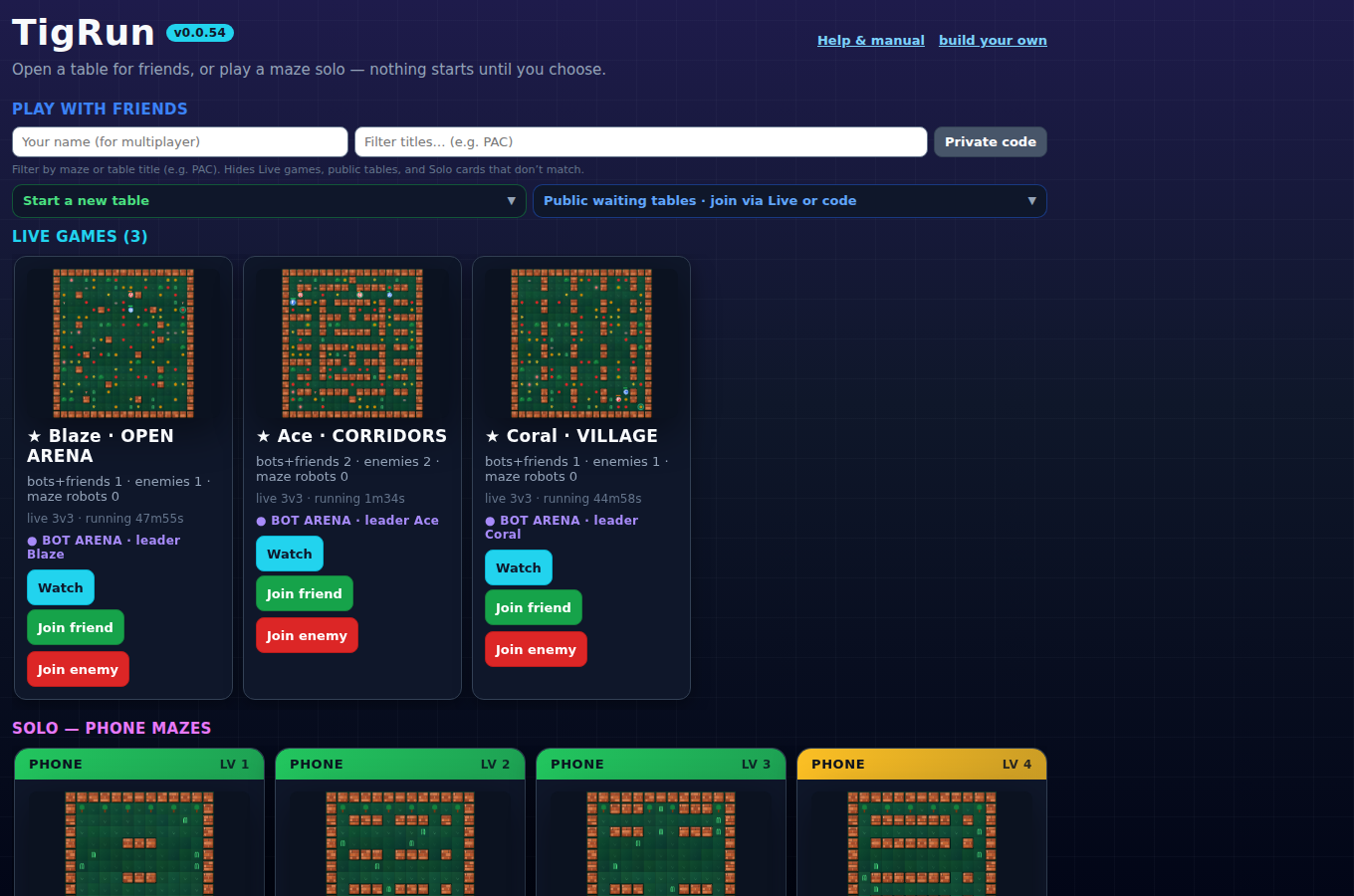
- Title and version — confirms you have the latest game after an update (hard refresh if unsure).
- Help & manual — this guide.
- build your own — opens the maze designer.
- Play with friends — your name, filter, private code, start/join tables.
- Live games — watch or join matches in progress (mini-map preview on each card).
- Solo mazes — scroll sideways; tap Play solo on any card.
2. Playing a maze
After Play solo or Play in design mode, you control your character on the grid. Eat smaller dots, avoid bigger ones, use abilities from the side lists or bottom bar.
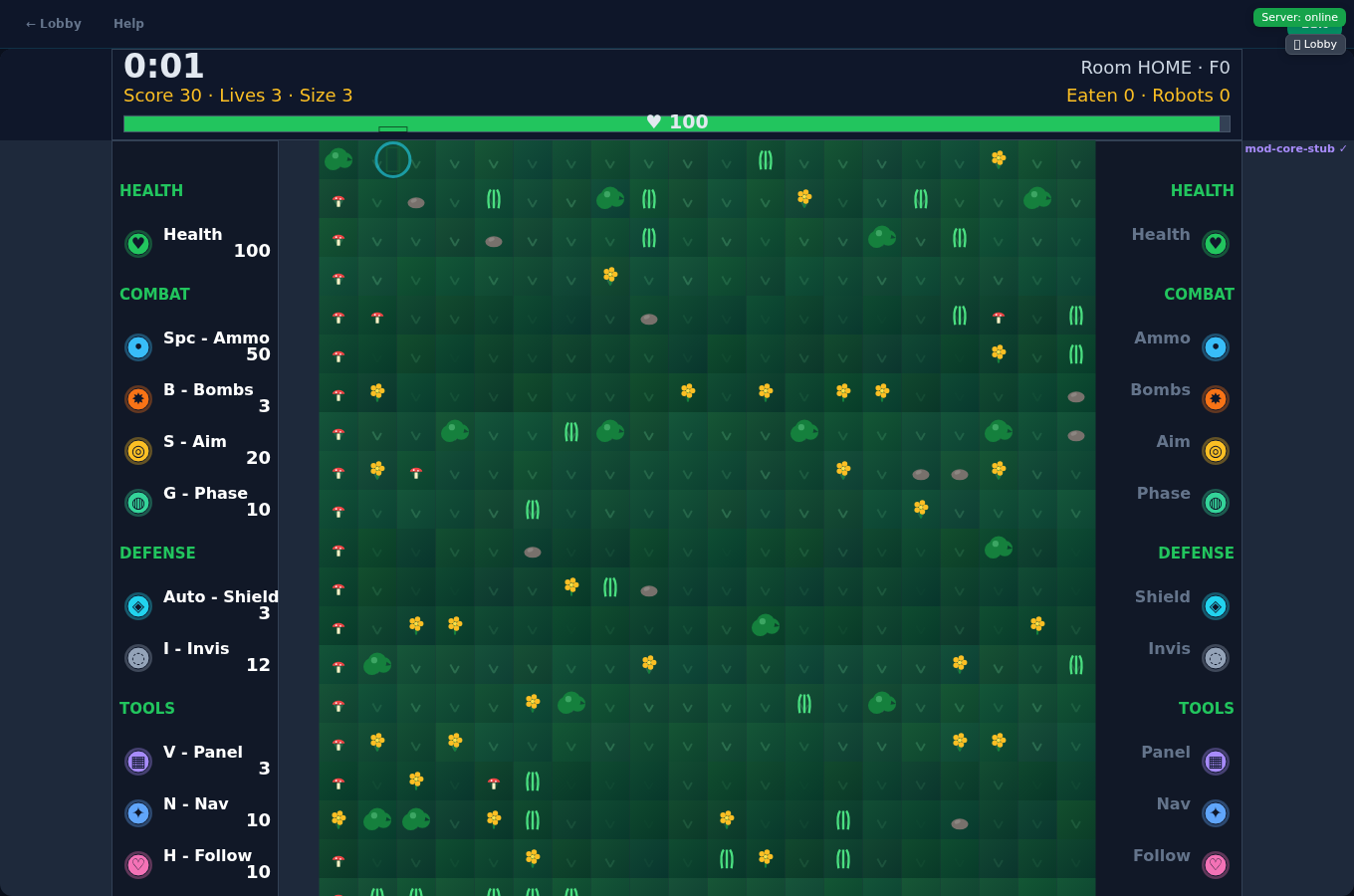
- Top bar — time, score, lives, your size, room name, feed/robot counts.
- Left and right columns — ability names, keyboard hints, and how much you have left (ammo, bombs, etc.).
- Center — the maze; you are the main character. Arrows move; Space shoots when guns are on.
- ← Lobby — pause and return home; you can resume later.
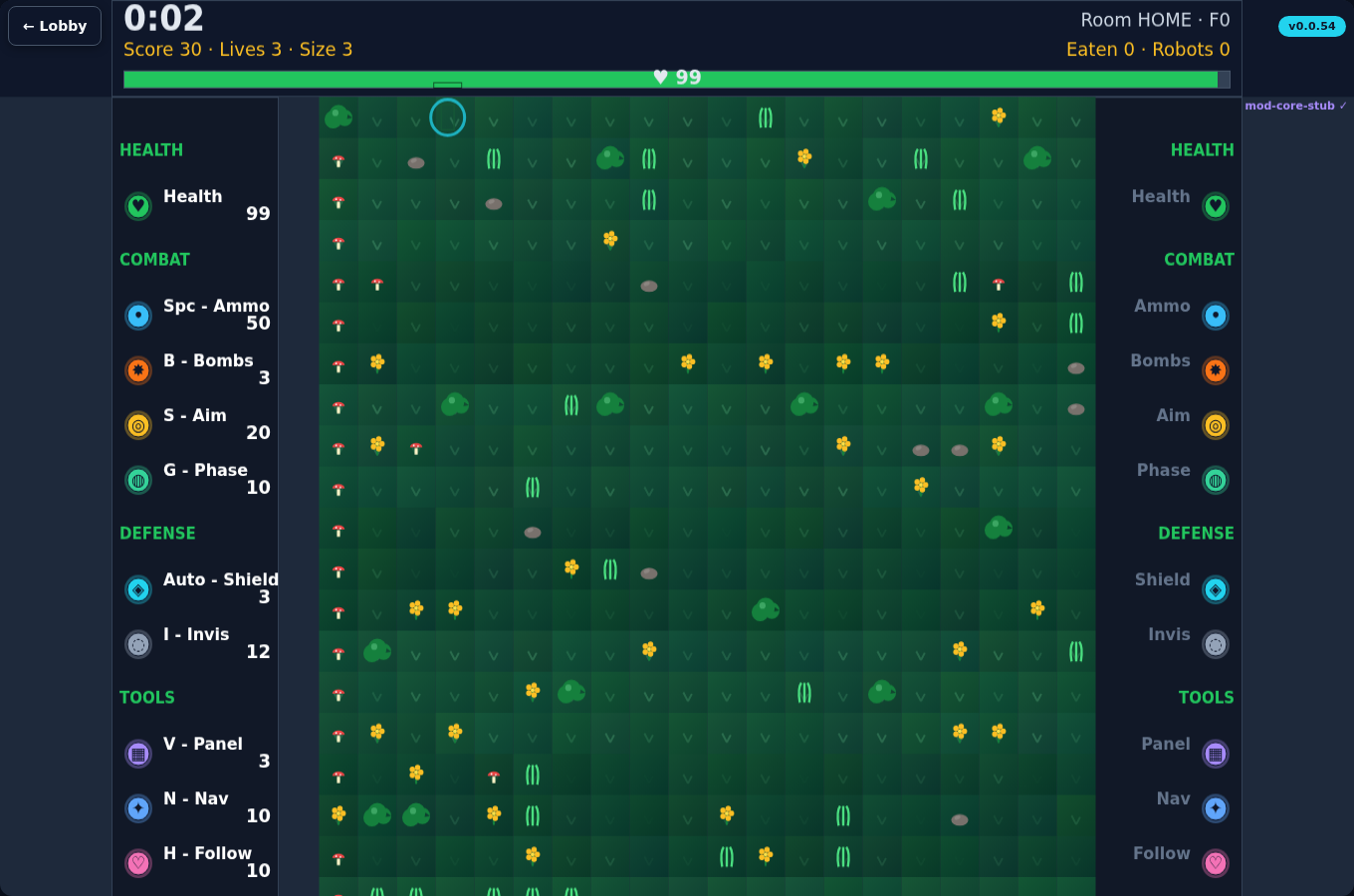
- Bottom ability bar — tap Shoot, Bomb, Panel, Aim, Lobby, Settings, etc.
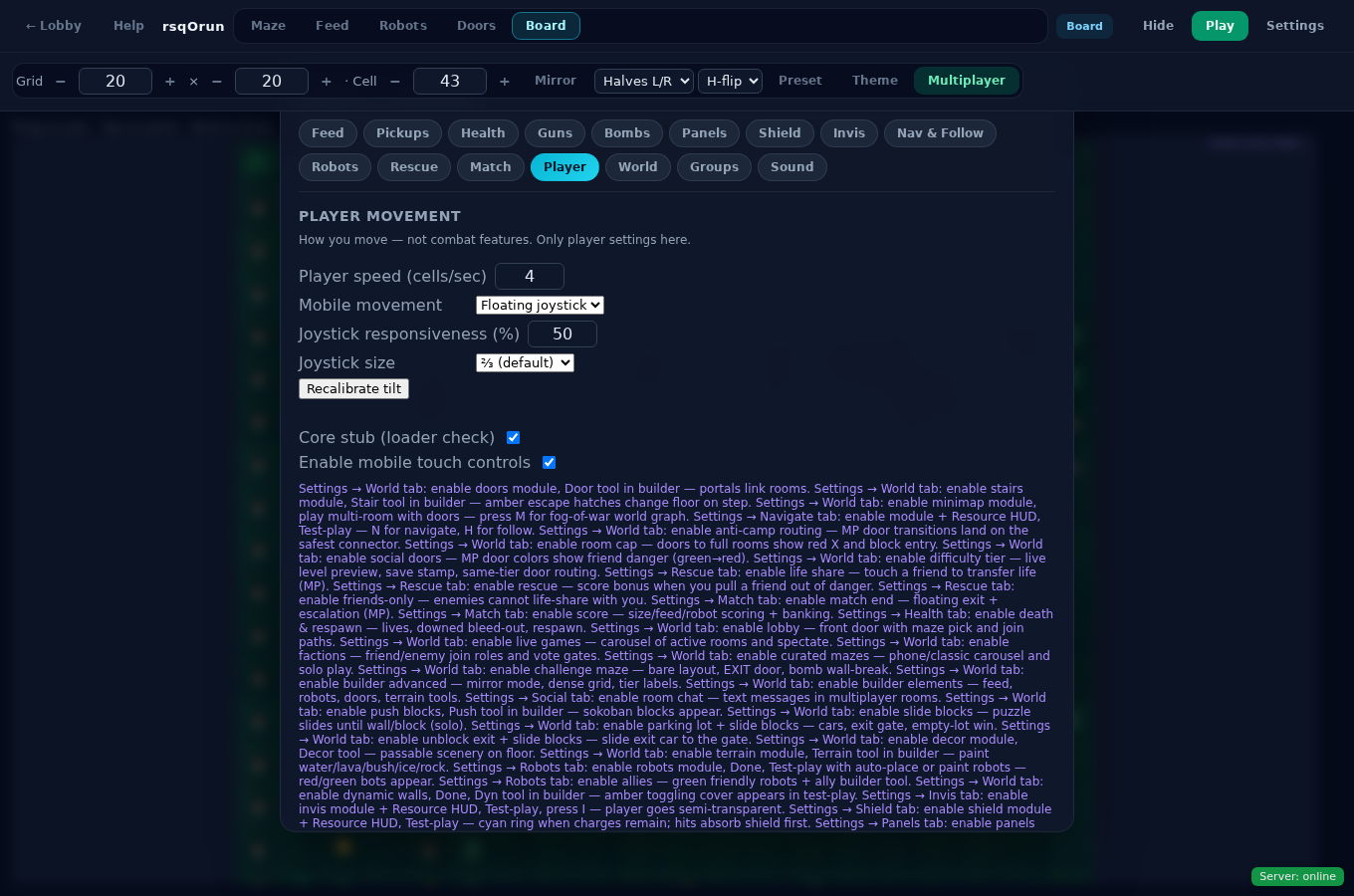
- Move by swipe, tilt, or invisible joystick — choose in Settings → Player.
3. Design mode overview
Tap build your own on the home screen. You get a blank grid, a top bar, tool drawer, and Settings for all rules.
- Pick a feature tab: Maze · Feed · Robots · Doors · Board.
- Tap Tools if the drawer is closed — buttons for Wall, Feed, Door, etc.
- Click or drag on the grid to paint.
- Tap Play to test. Tap Edit to change the layout again.
- Tap Settings — each tab is a full screen of switches and numbers. Tap Done — back to game when finished tuning.
4. Build tool panels
Each tab changes the tools in the drawer. What you paint here is what players see when they play your maze.
4a. Maze tools
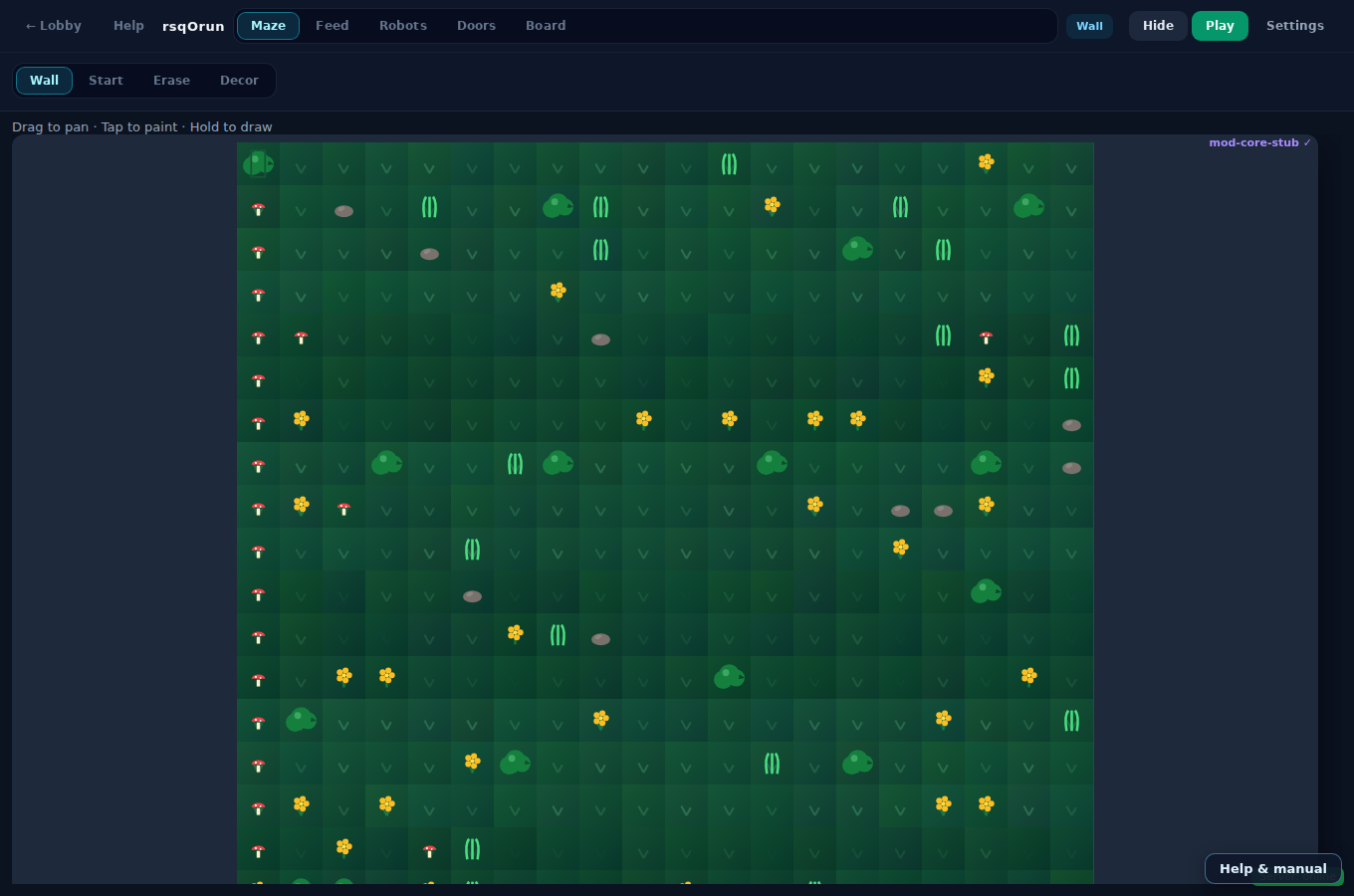
- ← Lobby / Help — leave or open this guide.
- Feature tabs — switch between Maze, Feed, Robots, Doors, Board.
- Wall — solid tiles. Erase — clear a cell. Start — where the player spawns (one per test). Decor — pretty floor art that does not block movement.
4b. Feed tools
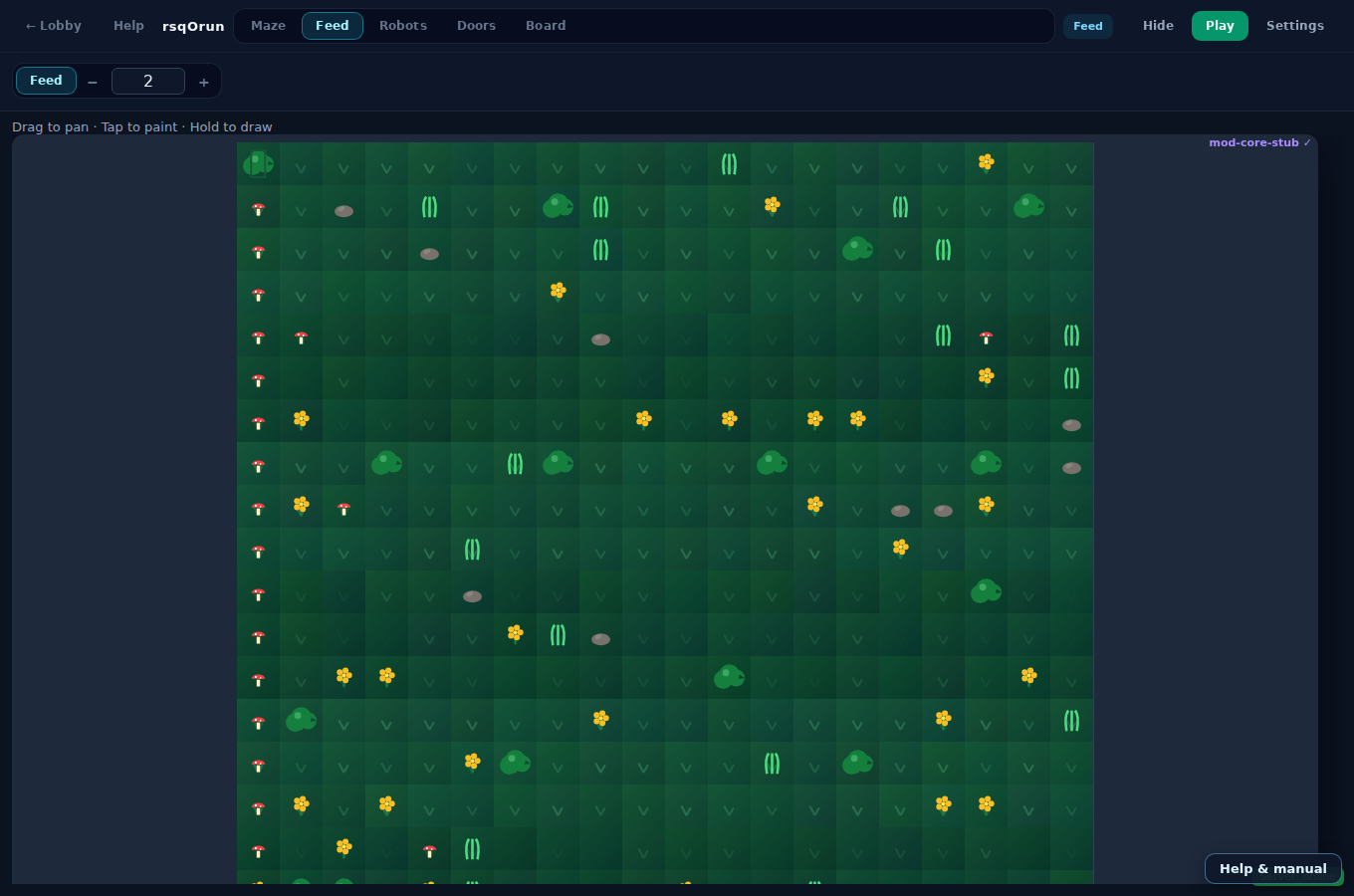
- Feed tool — places eatable dots.
- Size − / + — each dot has a number; players can only eat dots smaller than they are. Bigger dots hurt.
4c. Robot tools
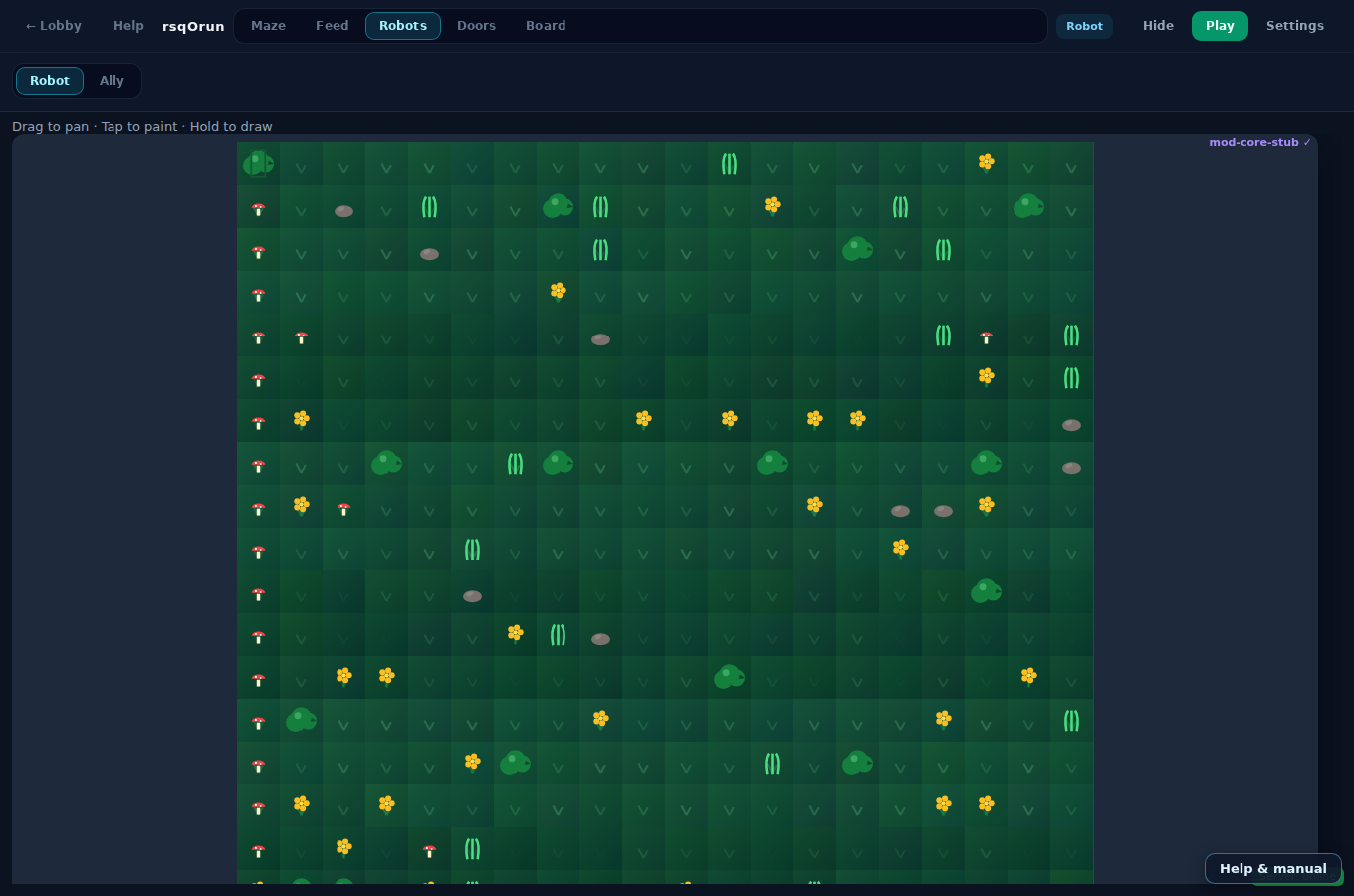
- Robot — red enemies that chase and damage.
- Ally — green helpers (when allies are enabled in Settings → Robots).
4d. Doors & terrain tools
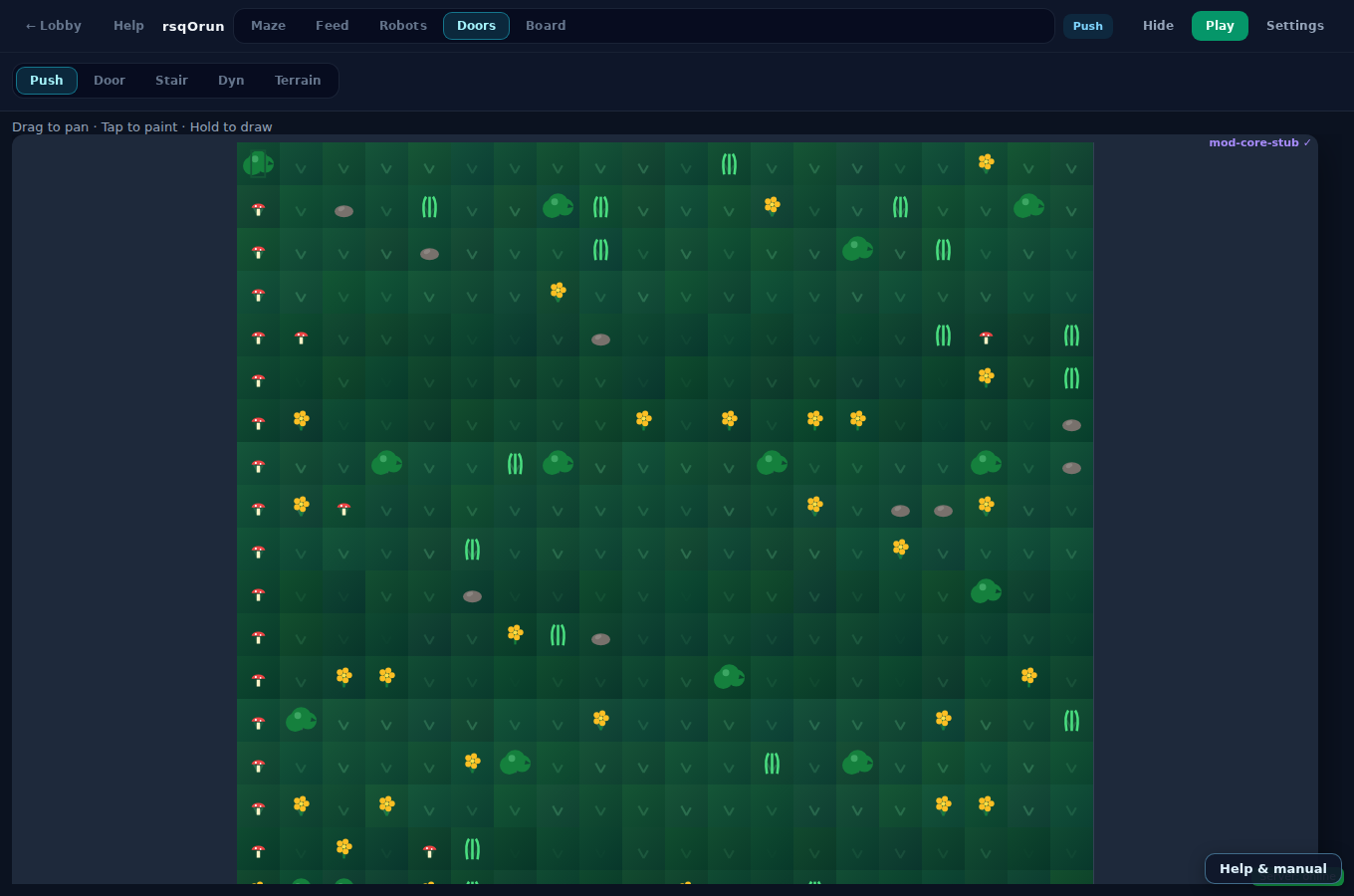
- Push — crates you slide (Sokoban-style).
- Door — portal; type a room name (e.g.
ROOM2) so stepping through loads that room. - Stair — changes floor level (up/down rules in Settings → Match).
- Dyn — walls that blink open and closed on a timer.
- Terrain — drag a rectangle: water (slow), lava (hurt), ice (slip), rock (block), bush (robot behavior).
4e. Board setup
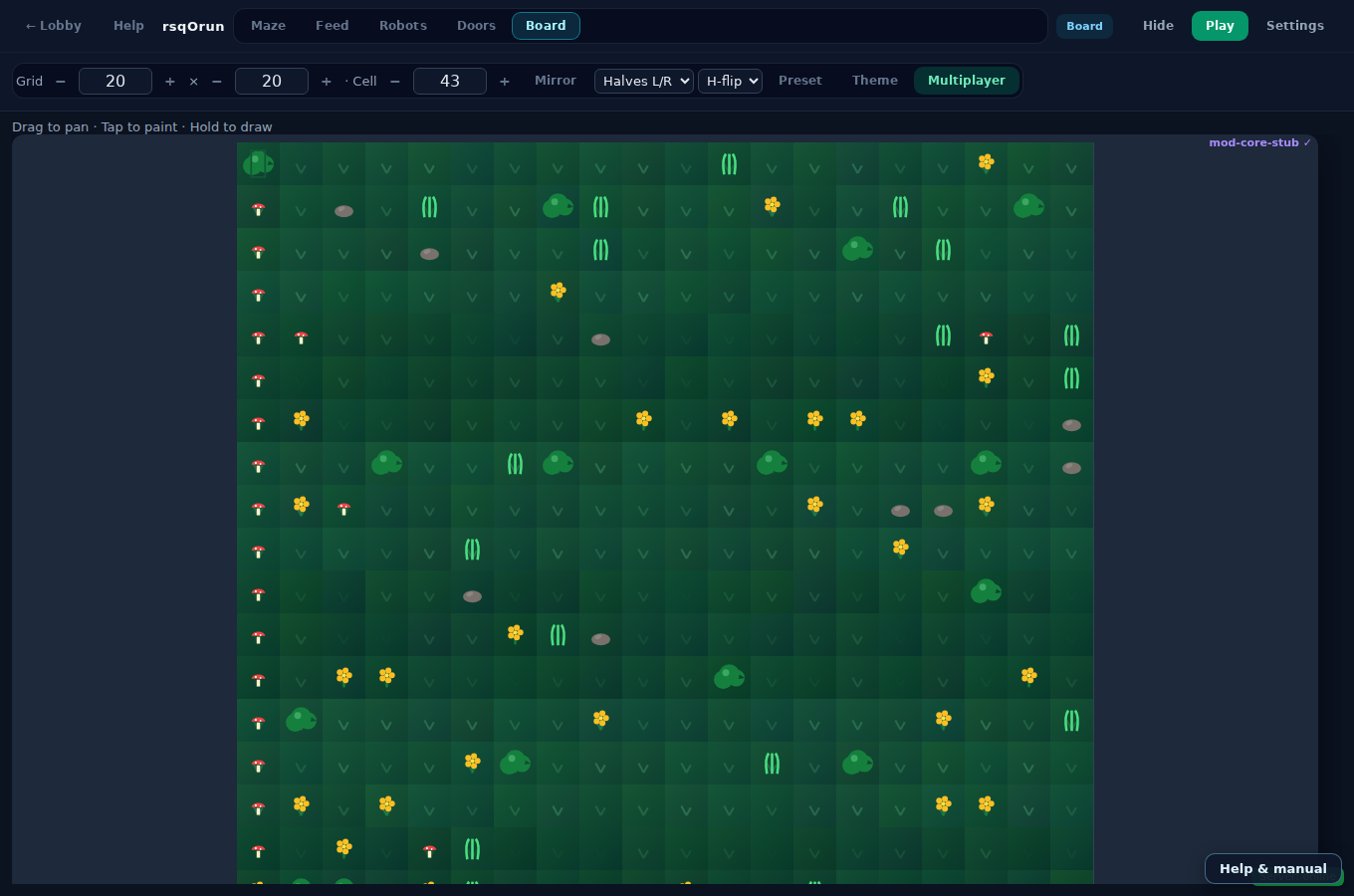
- Grid — columns × rows and cell size (how big each square looks).
- Mirror — paint on one side and copy to the other (symmetric mazes).
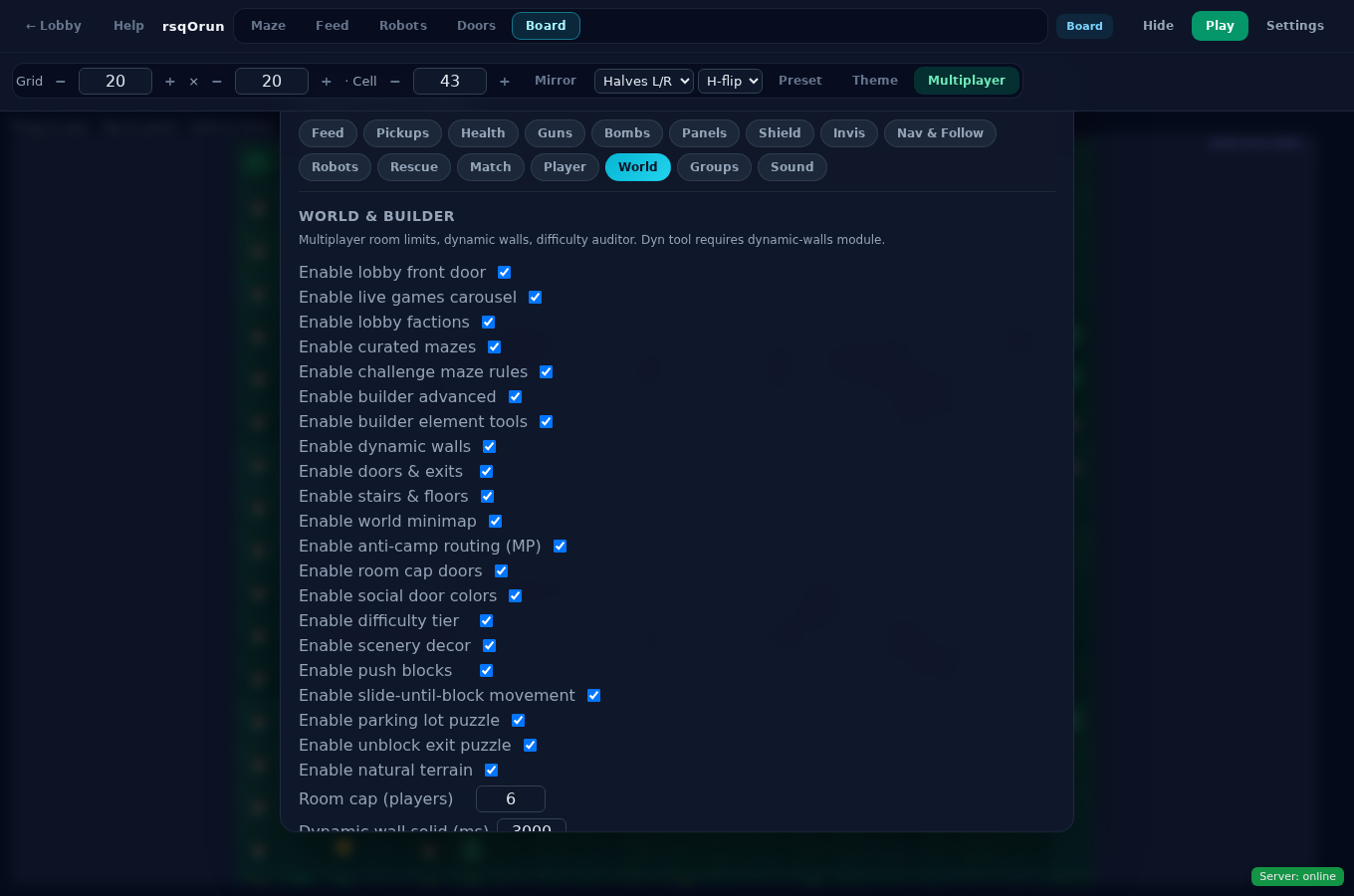
- Preset — auto-fill walls using difficulty sliders in Settings → World.
- Theme — emoji art for walls and floors.
- Multiplayer — host a table so friends load this board.
5. Feature settings
Tap Settings in design mode or during play. You see a row of tabs at the top and options below. Many rows start with Enable … — that switch must be on for the feature to work at all.
6. Settings tabs — every screen
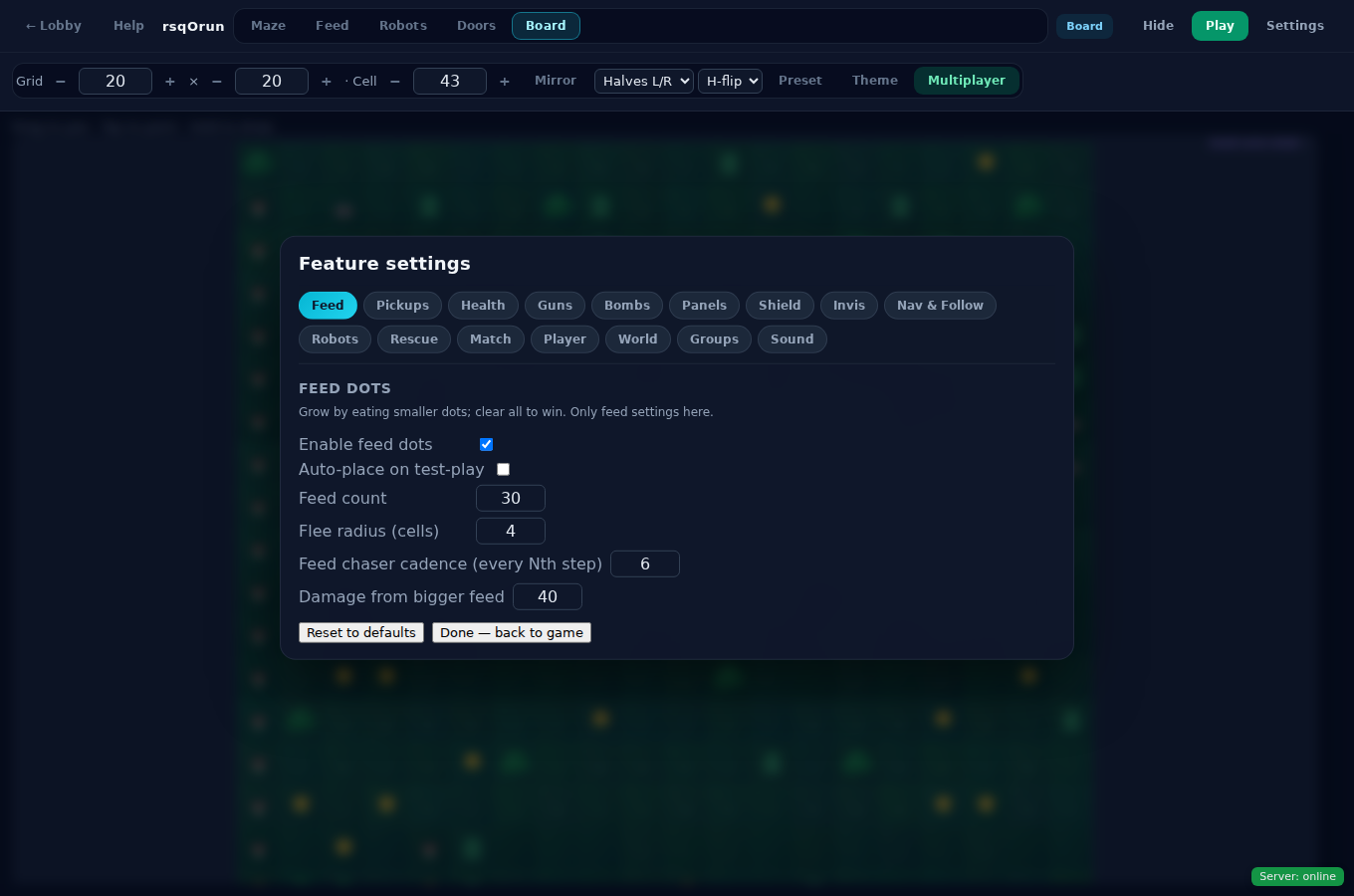
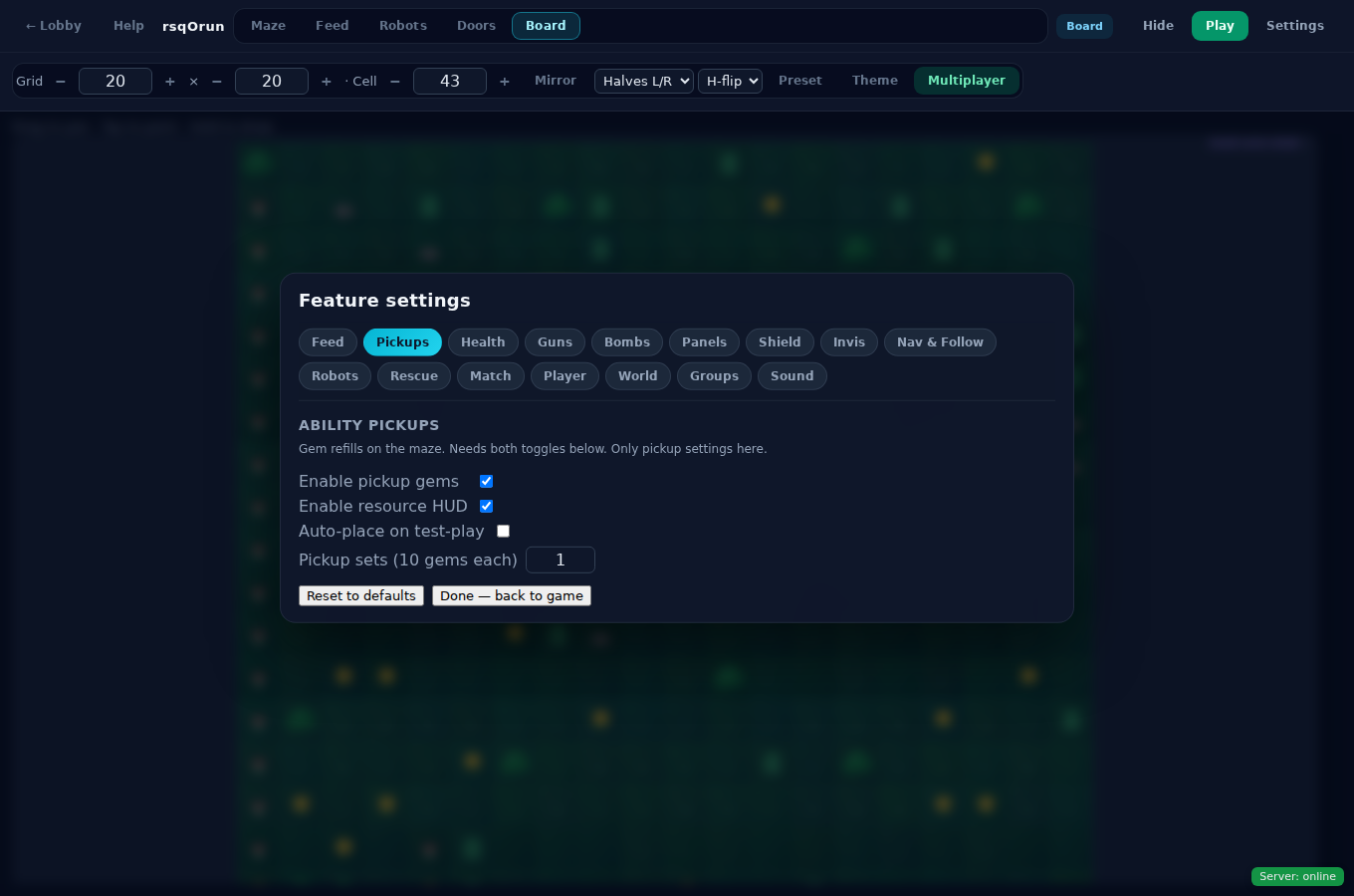
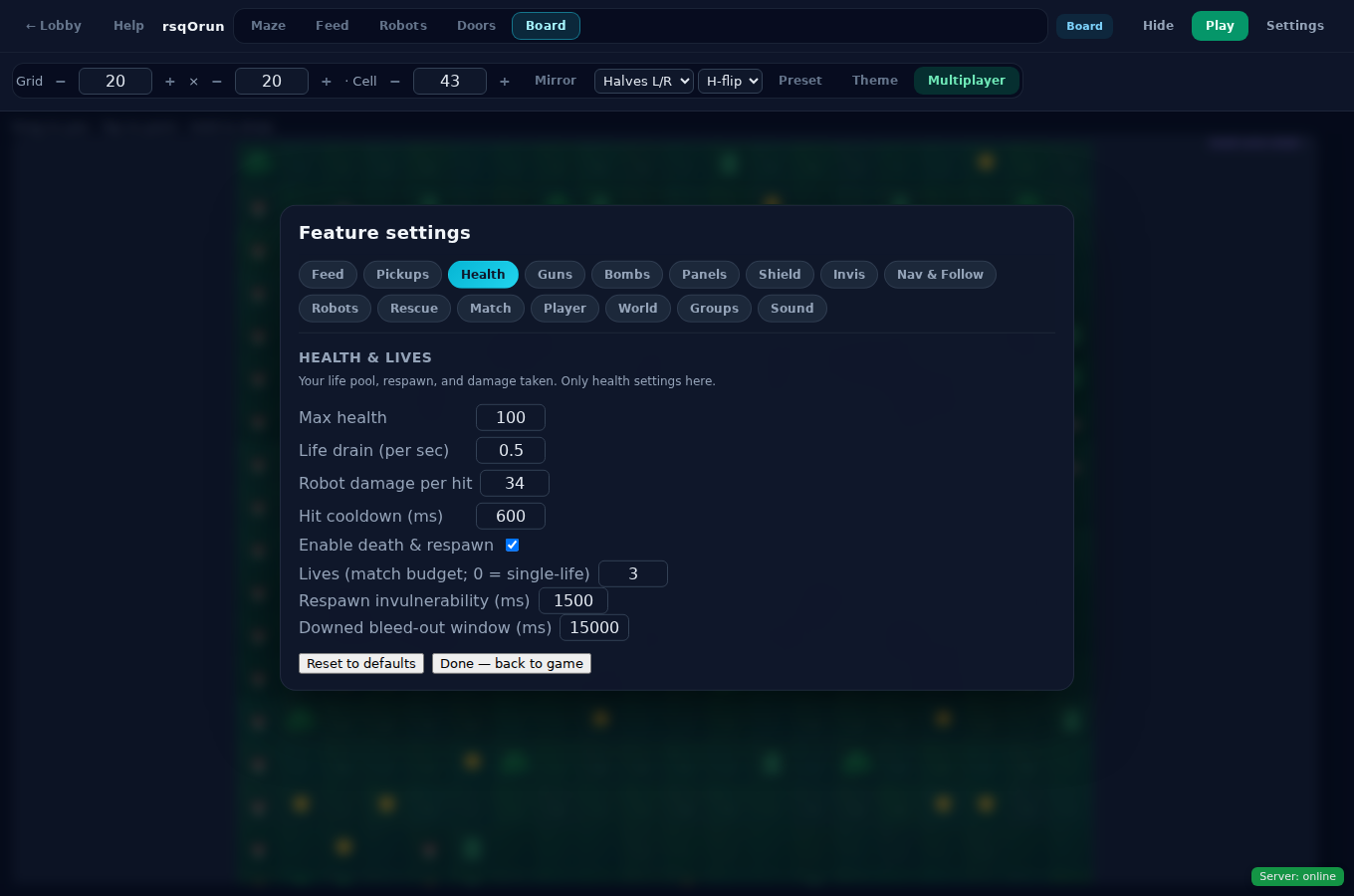
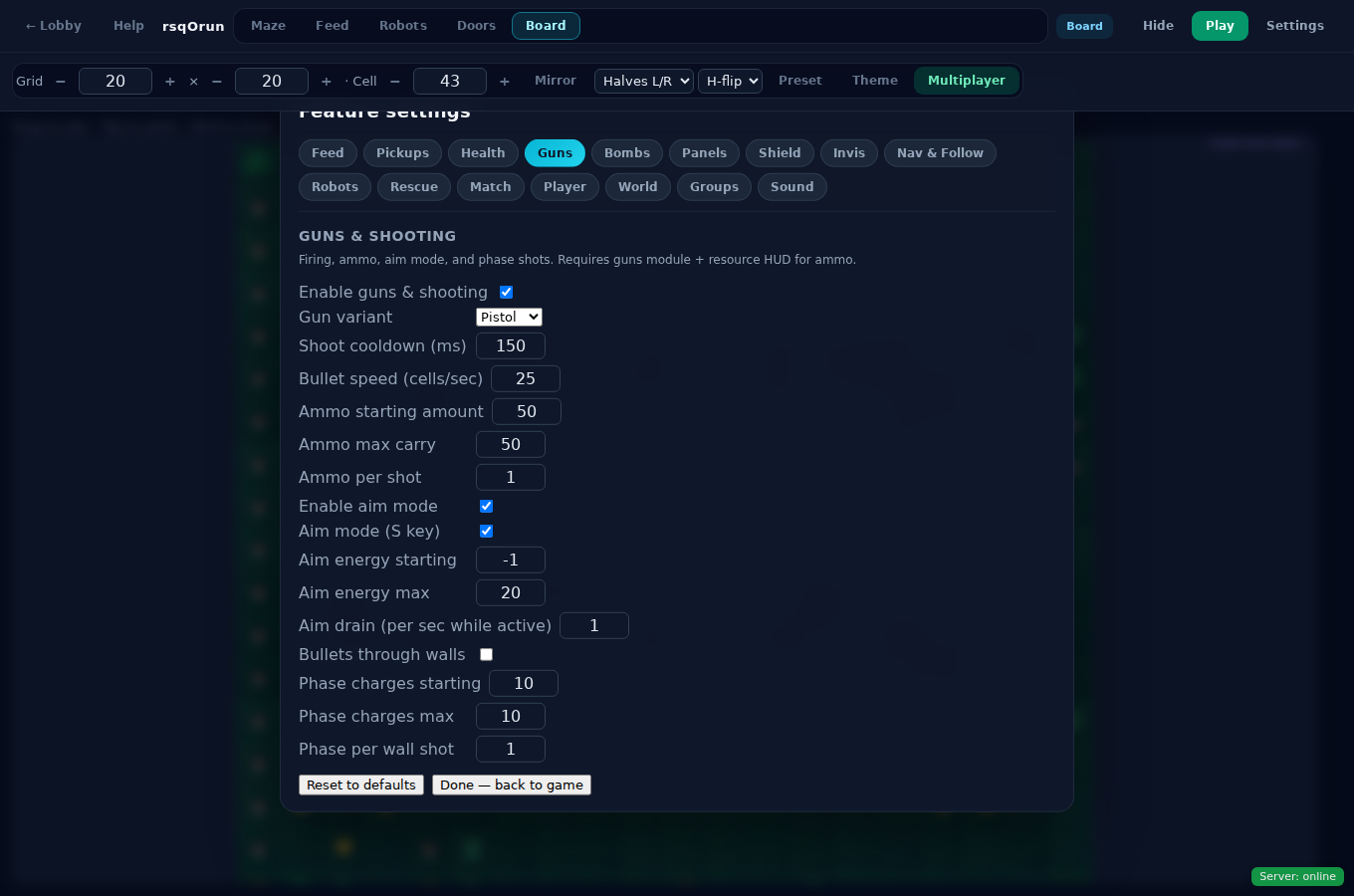
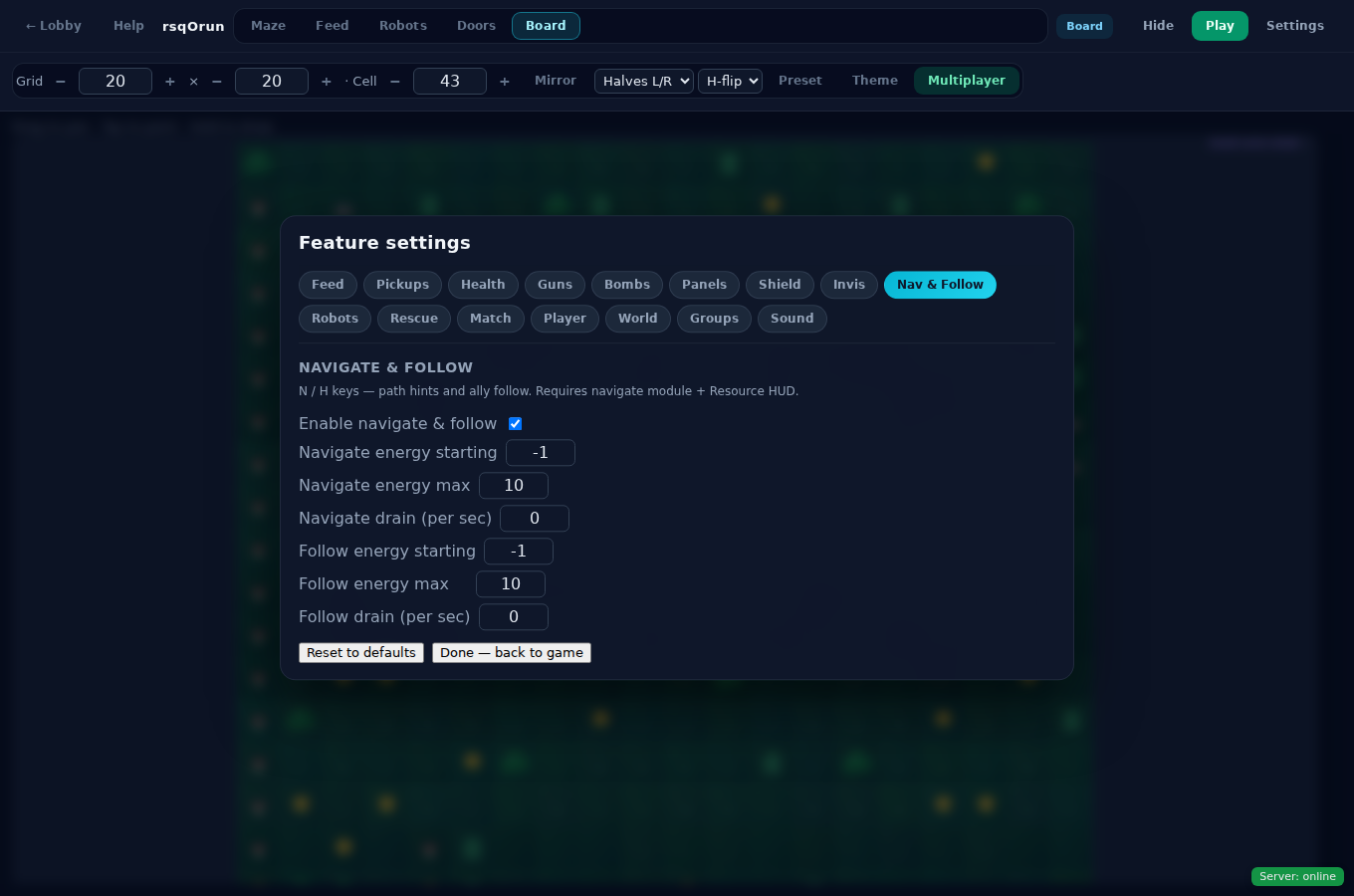
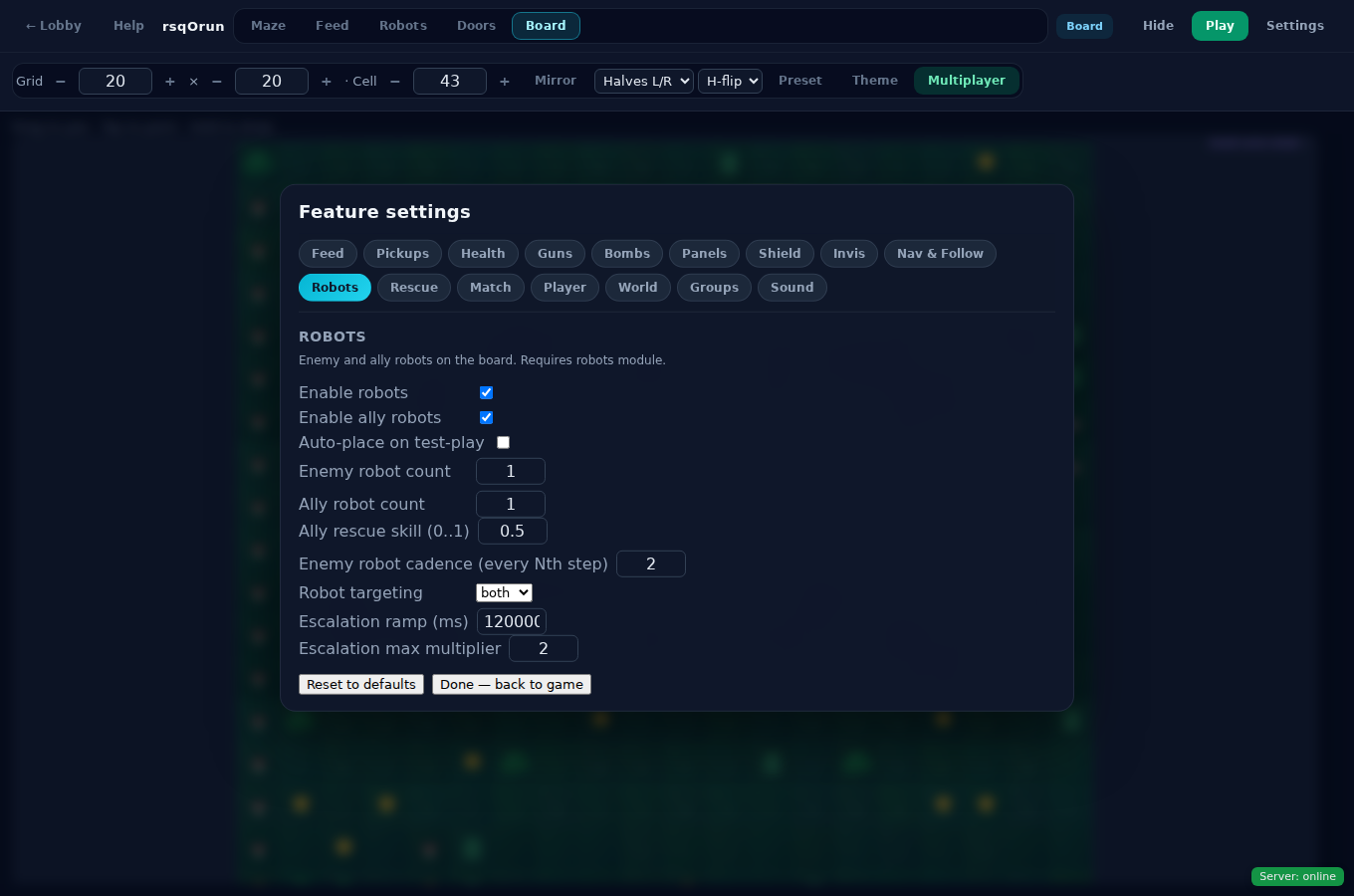
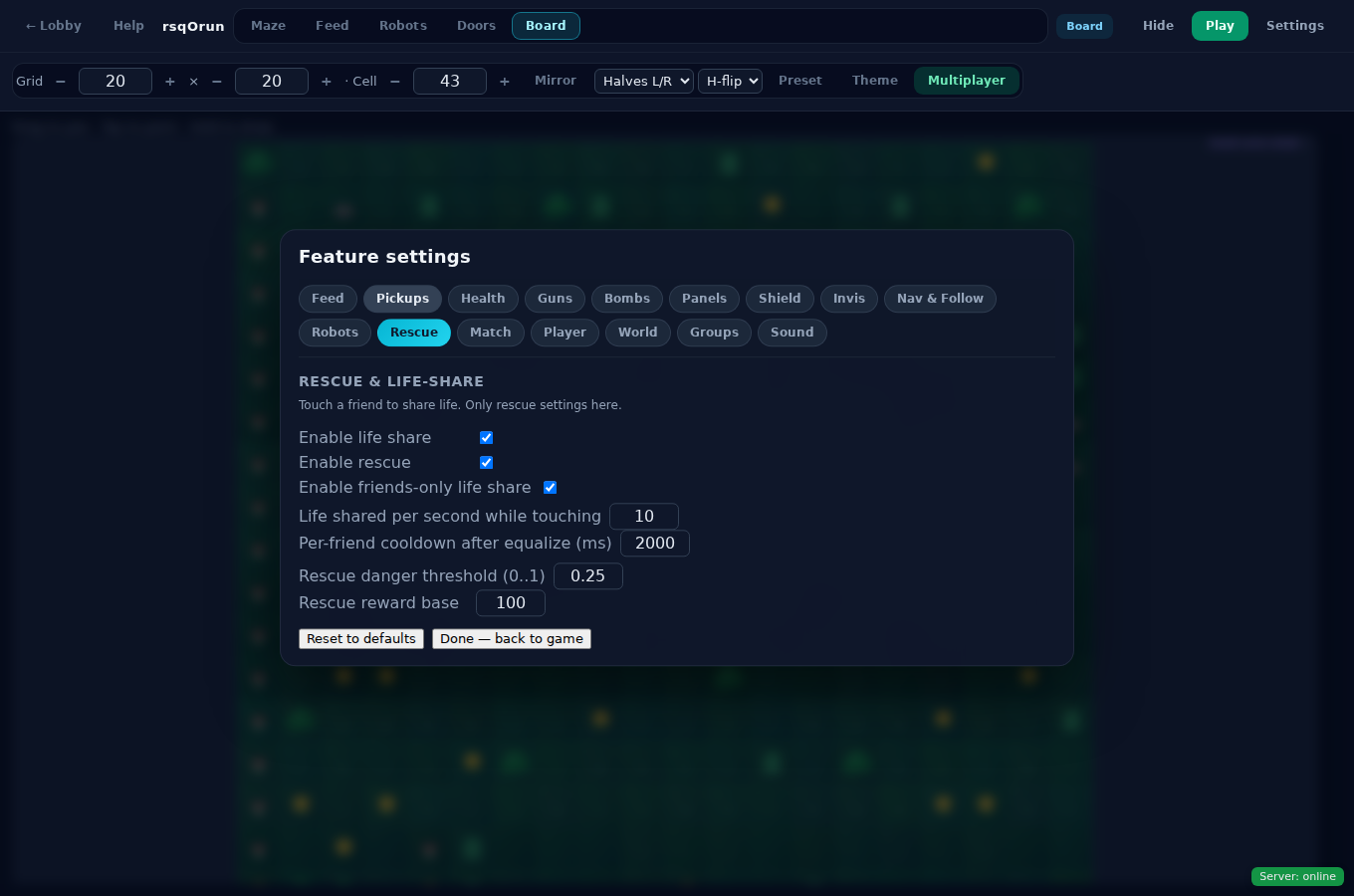
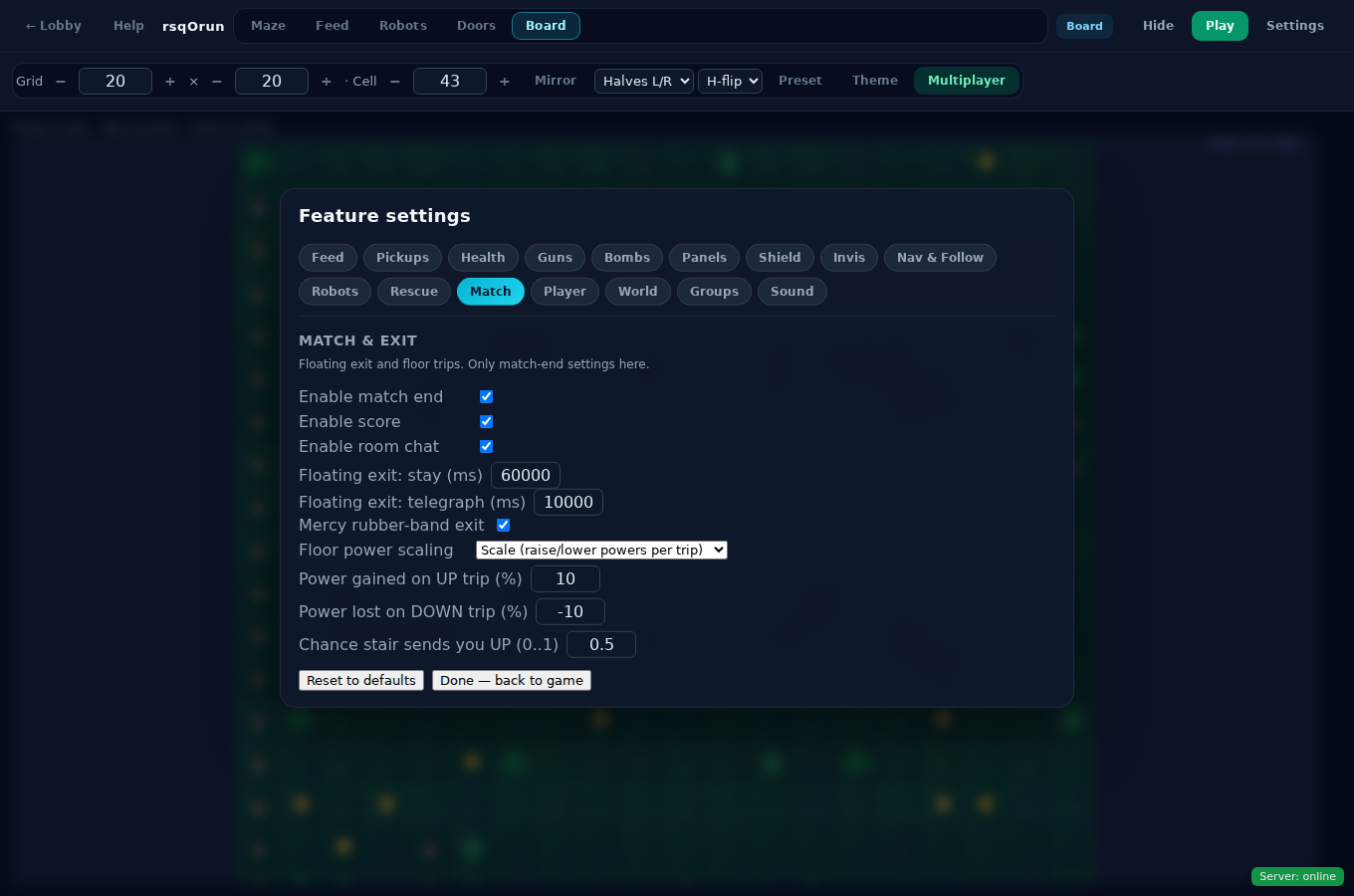
Below is one picture per tab, what the controls mean, and how they affect people playing your maze.
Feed
Pickups
Health
Guns
Bombs
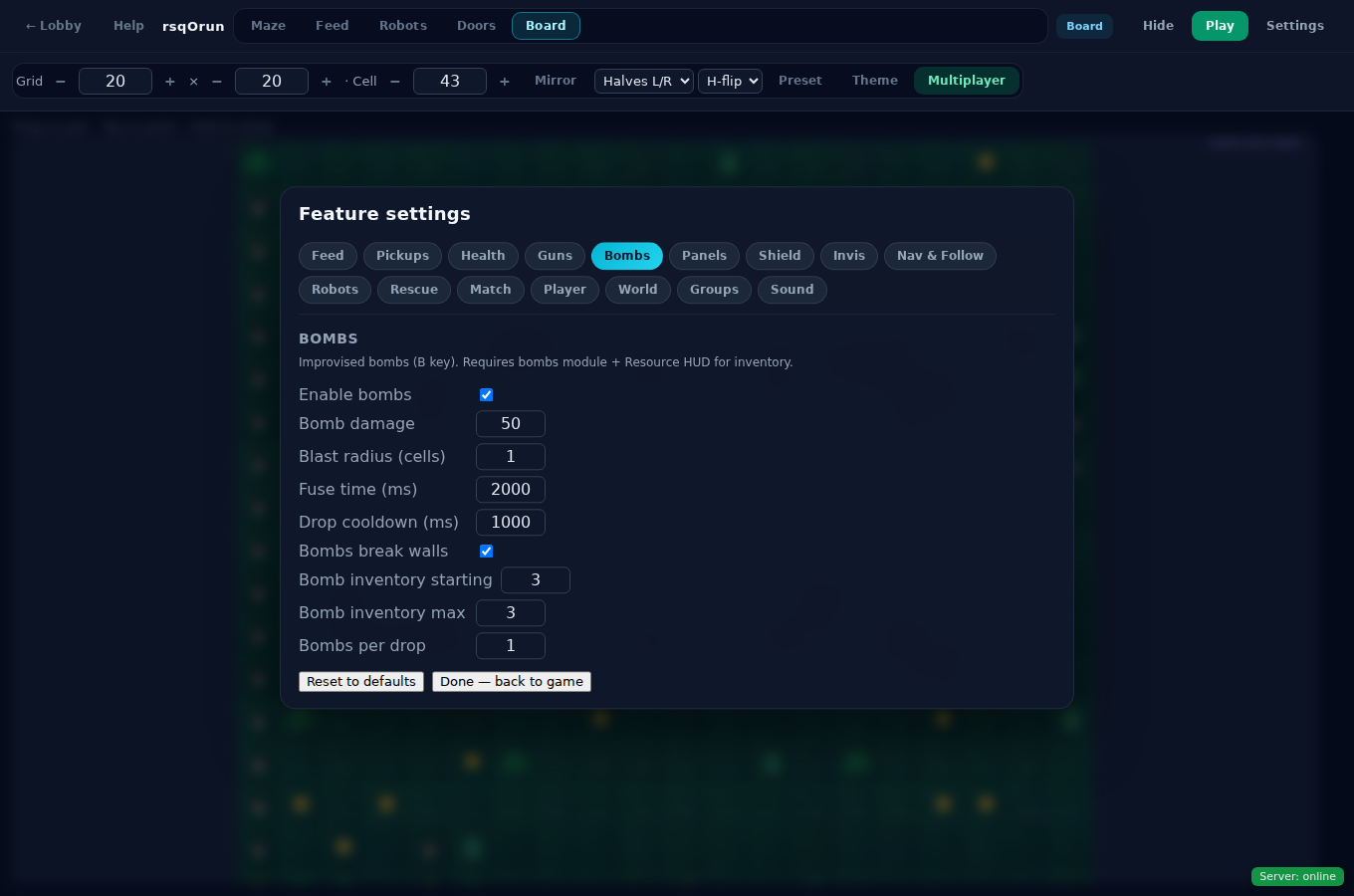
Panels
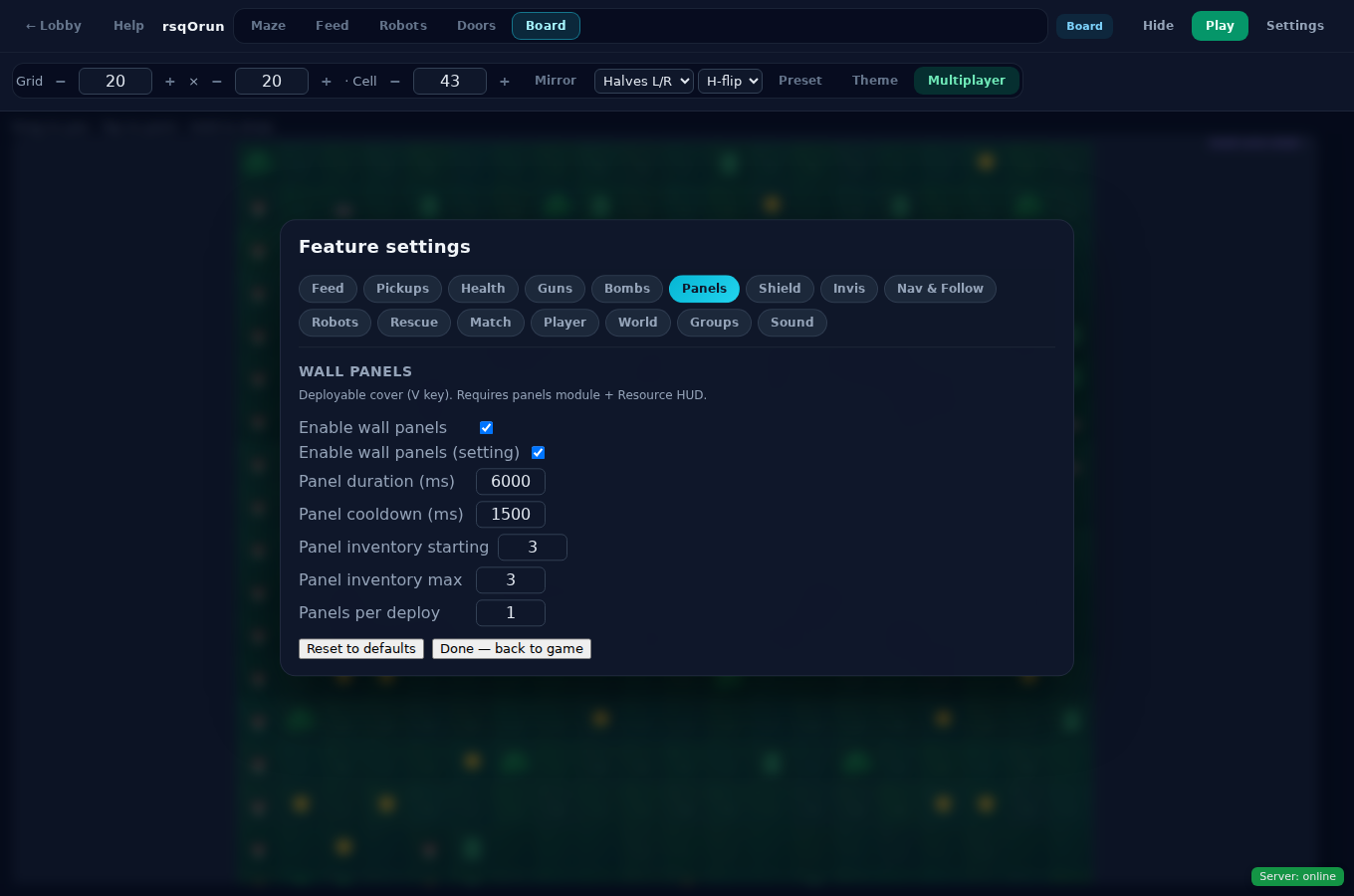
Shield
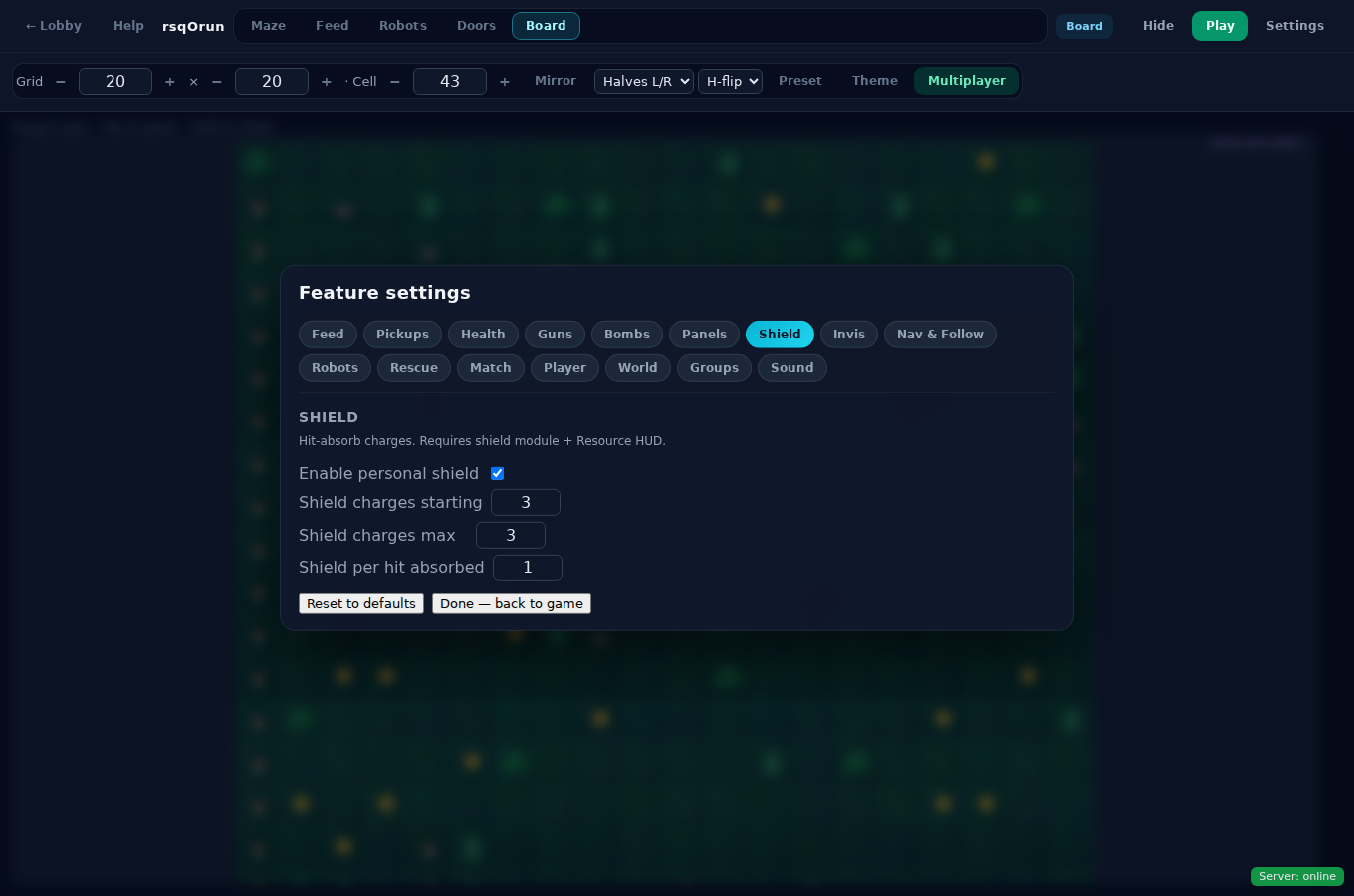
Invisibility
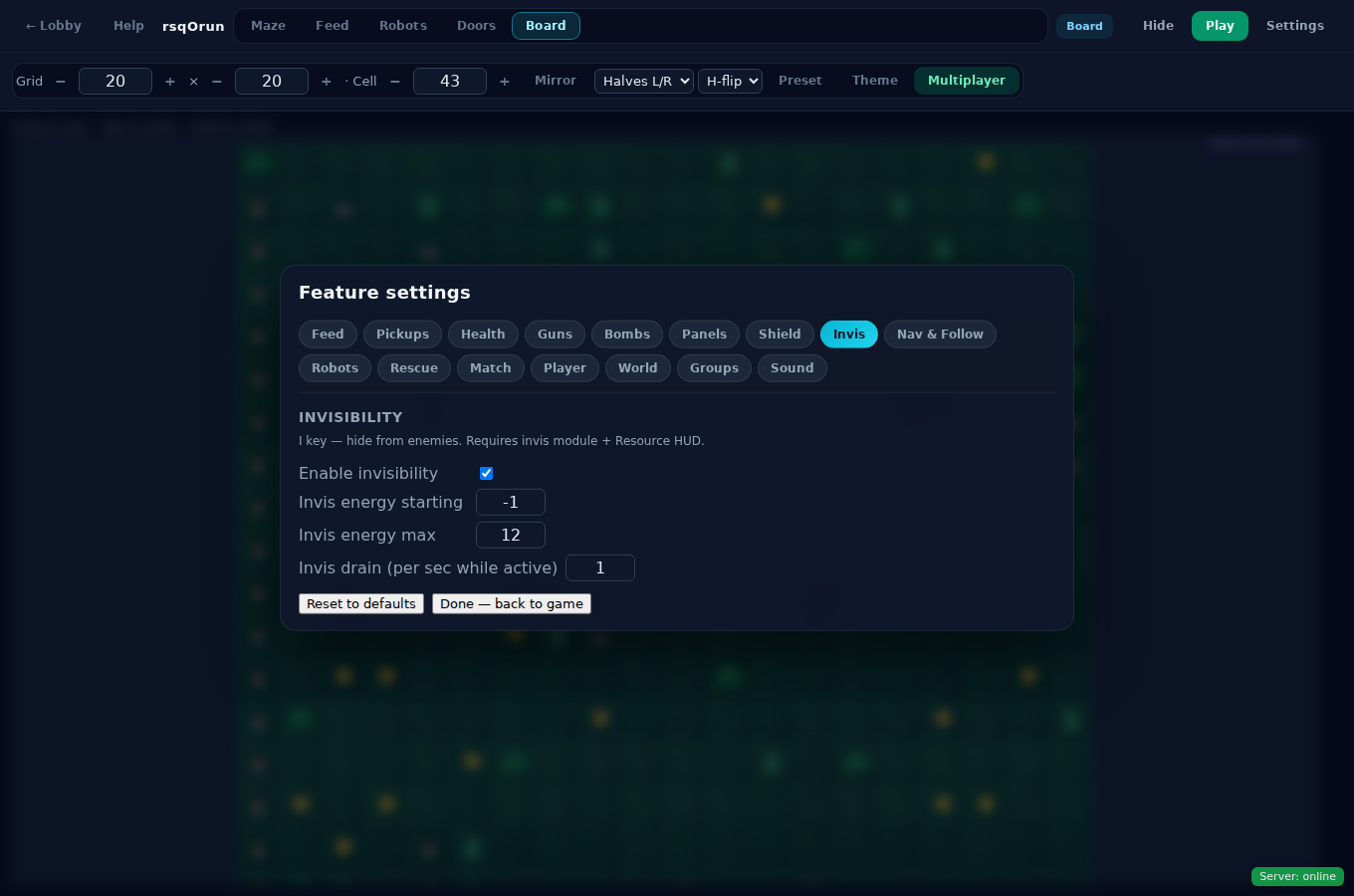
Navigate & Follow
Robots
Rescue
Match
Player
World
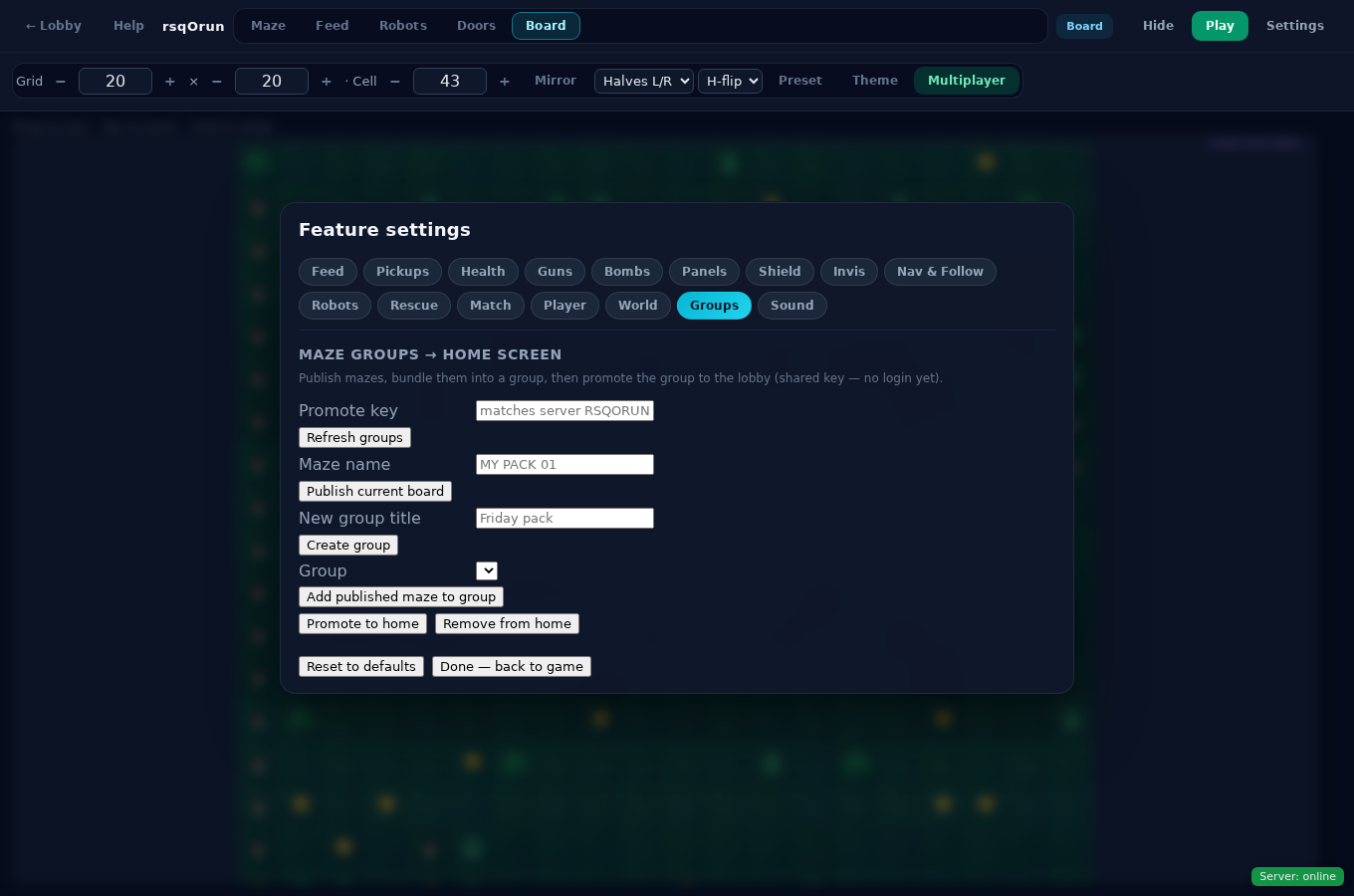
Groups
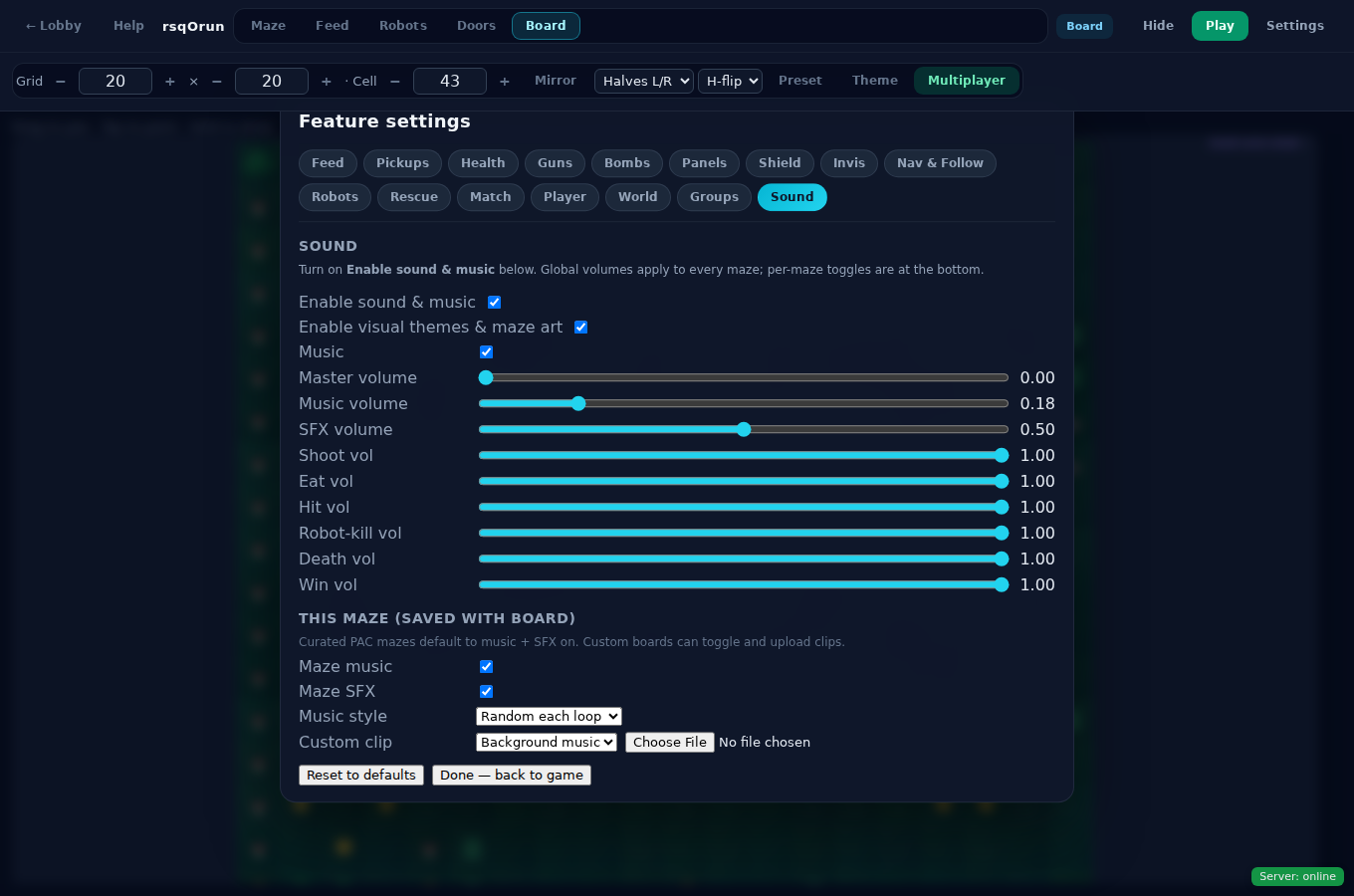
Sound
7. Sharing mazes on the home page
- Finish and test your maze.
- Settings → Groups — enter the promote key your host gave you.
- Publish current board with a short maze name.
- Create a group, add your published mazes, tap Promote to home.
- Players see a gold section on the home screen with your pack — same as official solo mazes.
Screenshots in this guide are captured from the live game UI. After updates, run a hard refresh if a picture and your screen disagree.